.svg)
Knowing your Linux operating system is step one for any IT or security job. Before you patch a server, configure a service, or start a penetration test, you must know what you're working with. Getting this wrong can break your systems and leave you wide open to attacks.
Why Knowing Your Linux OS Is Critical
For IT managers and CISOs, identifying the exact Linux OS is key for security and compliance. Every Linux version, like Ubuntu, Debian, or CentOS, has its own tools and security quirks. Figuring out which one you have is the first step to a secure network.

This is a must-have for compliance audits like SOC 2, HIPAA, and ISO 27001. Auditors need proof that your systems are properly managed, and that starts with knowing exactly what software is running. A simple OS check can be the difference between passing an audit and paying a huge fine.
Think of it like putting the wrong type of fuel in a car. Applying a security patch for one Linux system on another won't work and can cause serious problems. This is exactly why our pentesters always start by identifying the OS.
Our entire penetration testing process is built on speed and affordability. By quickly identifying your systems, our OSCP and CREST certified pentesters can find the security holes that matter. This focus lets us deliver detailed pen test reports in under a week, saving you from the slow, expensive process of traditional firms.
If you're curious how this first step fits into a bigger security check, see our guide on how to conduct an internal network pentest.
Universal Commands to Identify Any Linux OS
When you log into a Linux machine, you need to get your bearings fast. A few simple commands work on almost any Linux system. This is where our pentesters start every single pen test to get a quick and accurate overview.
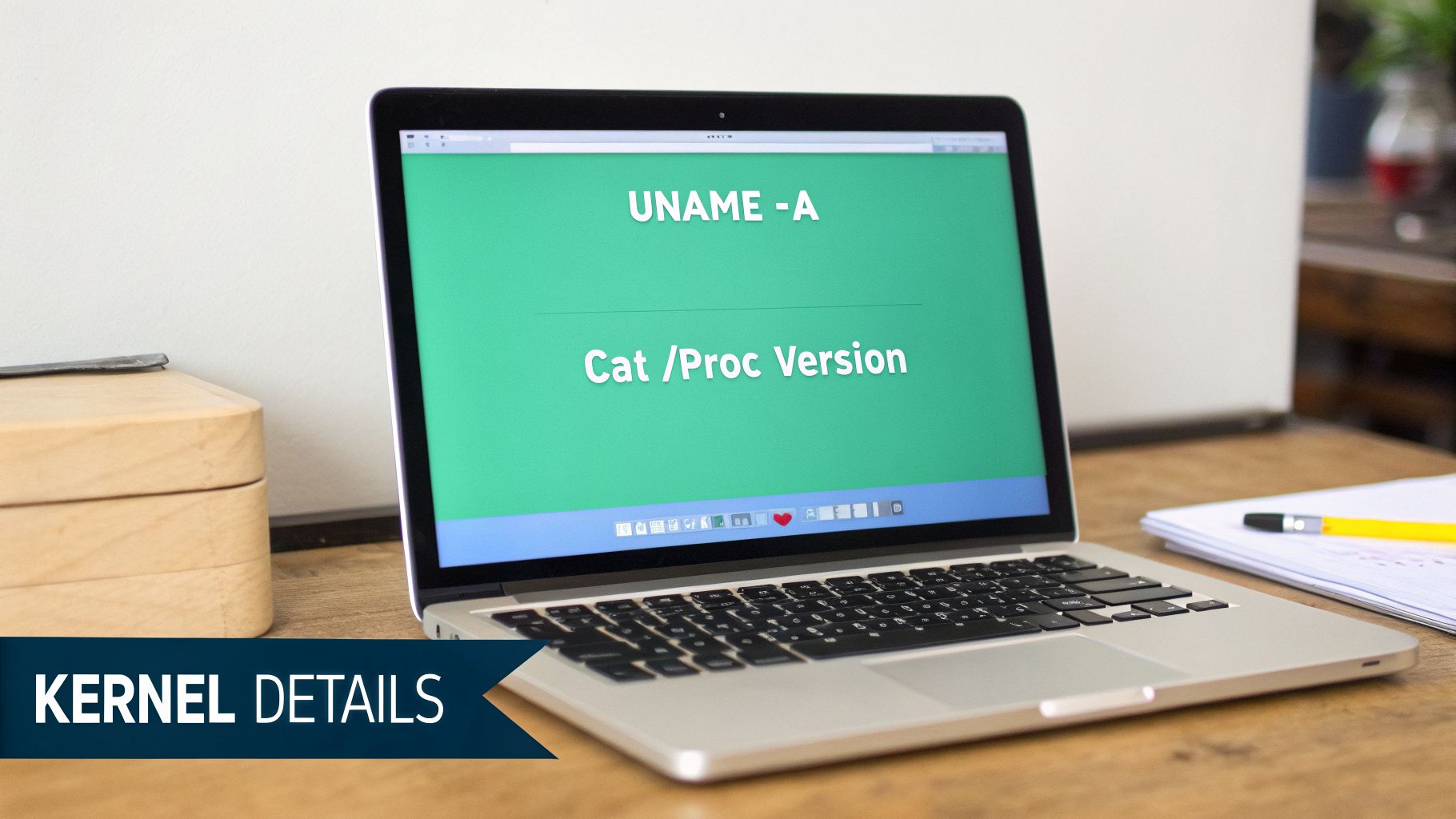
The First Command to Always Run is Uname
Your go-to command should be uname. It stands for "Unix name" and gives you the core system details. Running uname -a shows you everything at once, which is how our OSCP and CEH certified pentesters get a fast baseline on every penetration test.
Here’s what it tells you:
- Kernel Name:
Linux– Confirms you're on a Linux system. - Hostname:
web-server-01– The machine's name on the network. - Kernel Release:
5.15.0-88-generic– The exact kernel version, which is gold for finding known exploits. - Machine Architecture:
x86_64– Tells you if it's a 64-bit or 32-bit system.
This single command gives you a fingerprint of the system. It doesn’t give you the distribution name, like Ubuntu, but it tells you enough to start a proper security assessment.
Digging Deeper with the Proc Version File
Another simple trick is to read the /proc/version file. This gives you another look at the kernel version and often tells you the distribution name directly. It's a quick win our pentesters use all the time.
Just run cat /proc/version and you might see something like this:Linux version 5.15.0-88-generic (buildd@lcy02-amd64-027) (gcc (Ubuntu 11.4.0-1ubuntu1~22.04) 11.4.0, GNU ld (GNU Binutils for Ubuntu) 2.38)
See how it says "Ubuntu" right in the output? That confirms the distribution. With Ubuntu holding a 33.9% share of the Linux server market, this check is incredibly common. These commands help us deliver affordable pen testing reports in under a week.
Using OS Release Files For Clear Details
The universal commands are great for a quick look, but you often need cleaner details about the operating system. For that, your best bet is the /etc/os-release file. Our pentesters use this constantly to get the exact information for security reports.
Just use the cat command to view it: cat /etc/os-release.
The output is clean and perfect for a quick check or for use in a script:
PRETTY_NAME="Ubuntu 22.04.3 LTS"NAME="Ubuntu"VERSION_ID="22.04"VERSION="22.04.3 LTS (Jammy Jellyfish)"ID=ubuntuID_LIKE=debianIn one command, you get the distribution name, version, and even its codename. For any security or compliance audit, this is the level of detail you need.
Exploring an Alternative with LSB Release
Another common method, especially on older systems, is the lsb_release command. LSB stands for Linux Standard Base, an old project to make Linux systems more similar. Running lsb_release -a gives you similar information in a different format.
While /etc/os-release is more common now, you will eventually find a machine that only has lsb_release. Knowing both commands is a smart move for any pen test. Our OSCP and CEH certified team is trained to be adaptable, which lets them work faster and deliver reports in days.
Identifying the OS accurately is critical for compliance. You can find more on Linux market share trends to see why this matters. That’s why knowing /etc/os-release and lsb_release isn't just a fun fact, it's a core skill for any real-world penetration test.
How to Find Distro-Specific OS Details
Sometimes, the standard commands don't work. On older or weirdly configured systems, you have to dig deeper. This is where knowing distribution-specific files separates a basic check from a real security audit.
This detailed approach is how our OSCP, CEH, and CREST certified pentesters build a precise profile of your systems. It lets us run a targeted penetration test, focusing on vulnerabilities specific to that OS. That efficiency is how we deliver high-quality findings quickly and affordably.
The Red Hat Family Release File
For systems in the Red Hat family like RHEL, CentOS, or Fedora, a classic trick is to check a specific release file. These systems are common in big companies, so this is often one of the first things we check in a corporate penetration test.
You can view its contents with a simple command: cat /etc/redhat-release.
The output is direct, often looking like: CentOS Linux release 7.9.2009 (Core). This instantly confirms the distribution and version. It's also important for basic system tasks, like learning how to change the hostname in Linux, which can be different between OS families.
The Debian Family Version File
It's a similar story for Debian and its popular relatives like Ubuntu or Kali Linux. While /etc/os-release is the modern way, the existence of /etc/debian_version is a dead giveaway that you're on a Debian-based system.
Running cat /etc/debian_version will give you a version number like 11.7. This confirms the base system your OS is built on.
This is especially useful when we're performing a full security audit of your servers. For more on how we secure different environments, check out our cloud penetration testing services. This is part of how we provide fast, affordable pentesting that gets you reports in under a week.
Automating OS Detection with Simple Scripts
During a real penetration test, doing things by hand is too slow. Our pentesters use simple scripts to chain commands together. This makes sure we get the OS details right every time so we can focus on what you hired us for: finding security holes.
This automated approach is a key reason we can deliver actionable pen testing reports in a week. For IT managers and startup founders, it shows the efficiency you get from an experienced, certified team.
Building a Simple Bash Script for OS Detection
Let's make a simple bash script that tries different commands in order. The script looks for /etc/os-release first, then tries lsb_release, and finally checks for files like /etc/redhat-release. It stops as soon as it finds the answer.
#!/bin/bash# Simple script to determine the Linux operating systemif [ -f /etc/os-release ]; then. /etc/os-releaseecho "OS found: $PRETTY_NAME"exitelif command -v lsb_release &> /dev/null; thenlsb_release -aexitelif [ -f /etc/redhat-release ]; thencat /etc/redhat-releaseexitelseecho "Could not determine OS with common methods."fiThis script automates how to linux determine operating system details. Copy the code, save it, and run it. For more on automation, see our post on automated penetration testing tools.
Identifying Containers and Virtual Machines
Knowing the OS is only half the battle. You also need to know if you're on a physical machine, a virtual machine (VM), or a container like Docker. The environment completely changes the attack surface and what we look for during a pen test.
Here are some quick checks our pentesters use:
- Check for Docker: The presence of a
/.dockerenvfile is a dead giveaway. You can check for it withif [ -f /.dockerenv ]; then echo "Inside a Docker container"; fi. - Look for Virtualization Clues: Commands like
dmesg | grep -i "hypervisor"can reveal if the system is running under KVM, VMware, or another hypervisor.
Knowing you're in a container shifts the focus of a penetration test. The goal might change from breaking into the host to looking for container escape vulnerabilities. This is the kind of detail our OSCP, CEH, and CREST certified pentesters are trained to spot.
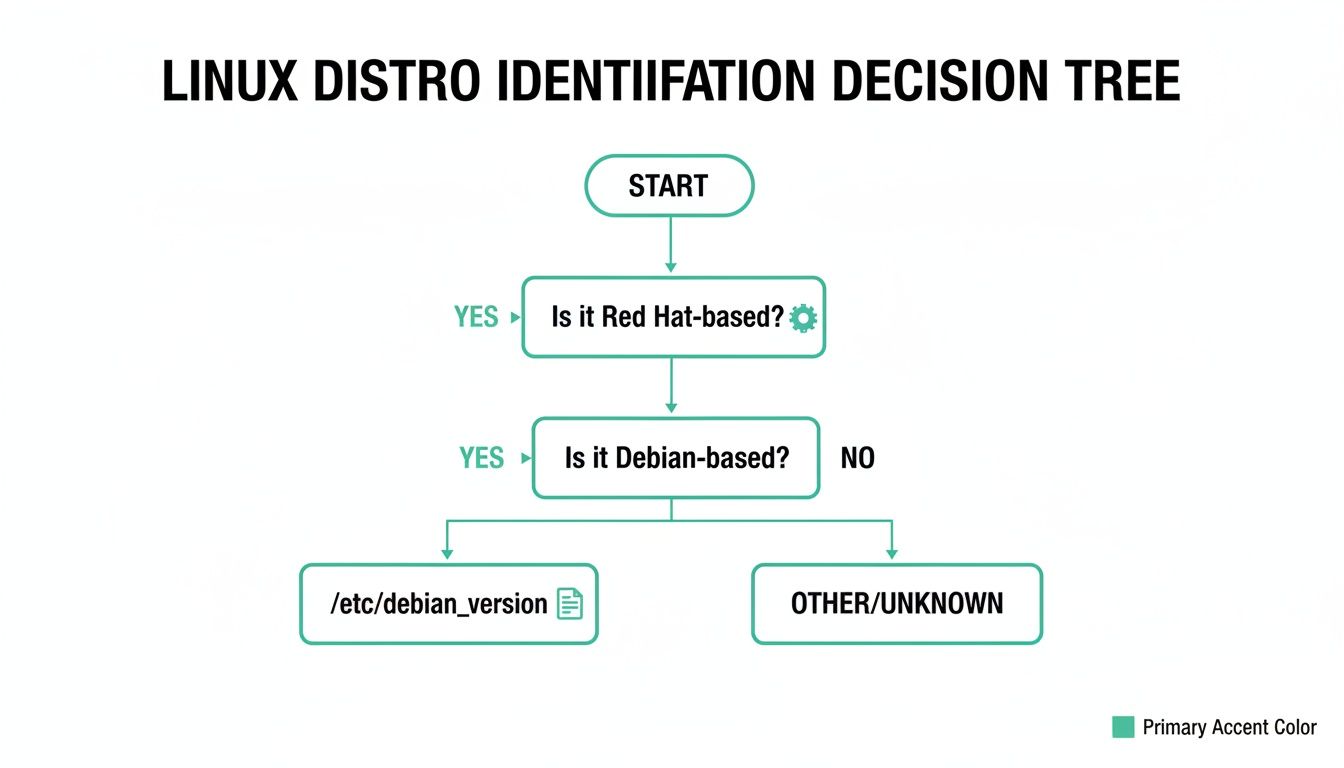
As you can see, a simple file check can quickly narrow down the OS family, which is a key first step for any automated detection script. You can read more statistics on Linux market share to understand why these skills are so critical for security.
Common Questions About Finding Your Linux OS
Even with a list of commands, some common questions always come up. Whether you're an IT manager or a security pro, these are the small things that can slow you down. Let's clear them up with direct answers.
Why Doesn't Uname Show My Distro Name?
This is a classic point of confusion. You run uname -a and get a lot of great info about the kernel, but the distribution name like "Ubuntu" or "CentOS" is missing. The reason is simple: uname reports on the Linux kernel, not the whole distribution.
The kernel is the core of the operating system, separate from all the other software that makes up a distribution like Ubuntu. To get the distribution name, you need to use tools made for that purpose. The best methods are checking /etc/os-release or using lsb_release -a.
Is There One Command That Works On Every System?
Not quite. There isn't one magic command guaranteed to work on every Linux system ever made. However, you can get very close with a simple fallback process.
This tiered approach covers over 99% of the Linux systems out there:
- Try
cat /etc/os-releasefirst. This is the modern standard. - If that fails, use
lsb_release -a. It's a great fallback. - If both fail, check distro-specific files like
/etc/redhat-release.
During a pen test, our OSCP and CEH certified experts use this exact logic to identify systems fast. It’s part of how we deliver affordable penetration testing with reports in a week.
How Do I Know If I Am In A Docker Container?
Knowing your environment is just as crucial as knowing the OS. The attack surface of a container is completely different. Luckily, there are a few simple ways to check if you're inside a Docker container.
The most common method is to look for a file at the root of the filesystem called .dockerenv. Run test -f /.dockerenv && echo "Inside a Docker container" to check. If that file exists, you're almost certainly in a Docker environment.
Another reliable method is to check the control groups. Just run cat /proc/1/cgroup. If you see the word "docker" in the output, it's a dead giveaway. This helps our pentesters understand the scope of the engagement and test for container-specific vulnerabilities.
At Affordable Pentesting, we use these exact techniques to provide fast, thorough, and affordable manual penetration tests. Our certified experts deliver high-quality reports in under a week, helping you meet compliance standards like SOC 2, HIPAA, and PCI DSS without the high costs and slow timelines of traditional firms. If you're ready to secure your systems, contact us through our form at https://www.affordablepentesting.com.